Every time you log in or sign up for a website on the Google Chrome browser, it asks you to save the login information to the browser.
If you save the login information with the password, it helps you to login next time, you do not need to type the password again.
But, if you want to delete a saved password from your Chrome browser you can do by following the steps below.
Unsave password on Chrome
METHOD-1
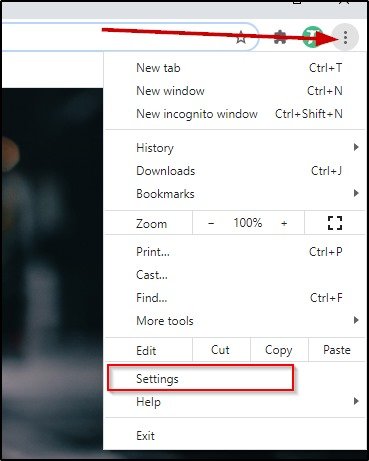
STEP 1: Open Chrome Settings
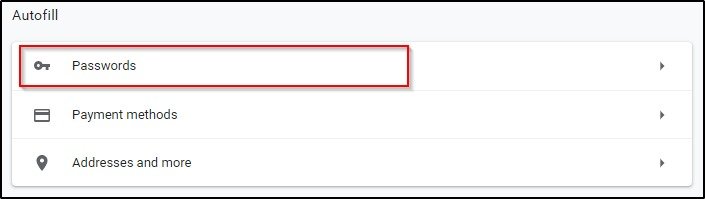
STEP 2: On the Chrome Settings page under Autofill section click on the Passwords option. Under this, you can see all the passwords saved on the Chrome browser.
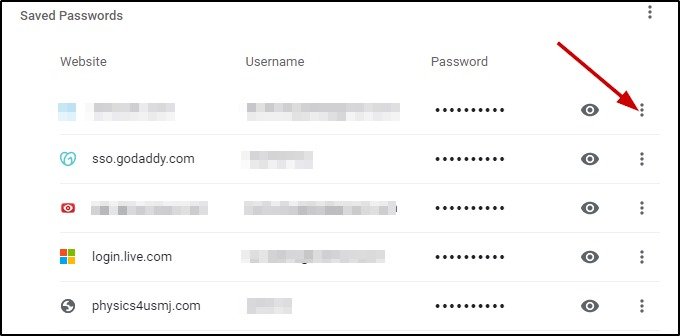
STEP 3: Under the Saved Passwords section you can see all the saved passwords on Chrome. Click on the three dots of the right side of any of the password which you want to unsave/delete from Chrome.
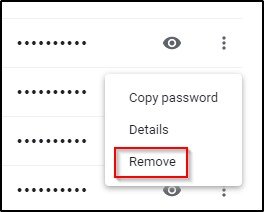
STEP 4: Click on the Remove option to finally delete the password from Chrome.
SEE ALSO:
- How to export passwords and bookmarks on Chrome?
- How to delete Chrome extensions?
- How to block websites on Chrome?
METHOD-2
STEP 1: Open the login page for which you want to unsave/delete the password from Chrome.
STEP 2: Click on the Key icon at the address bar(it appears on the address bar if the password for the website is saved on Chrome). Click on the delete icon to unsave/delete the password from Chrome.
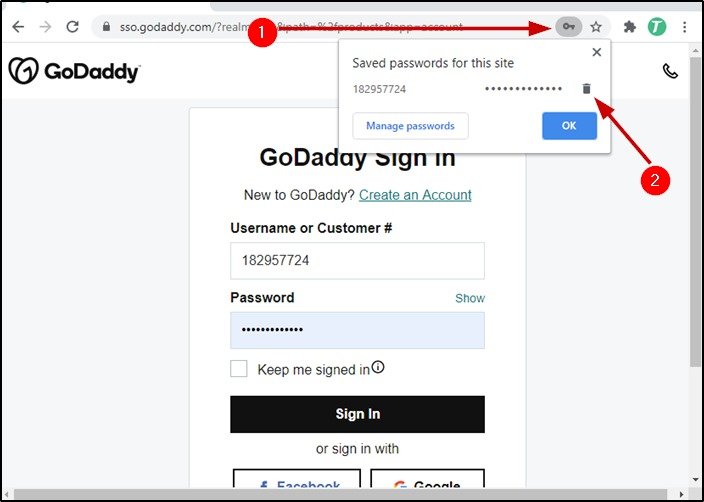
How to stop Google Chrome from remembering passwords?
STEP 1: Open the Settings of Google Chrome browser.
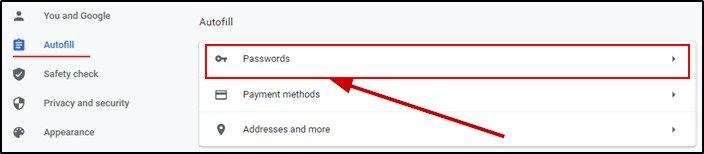
STEP 2: On the Settings page go to Passwords under the Autofill option.
STEP 3: Turn off the password remembering option on Offer to save passwords.
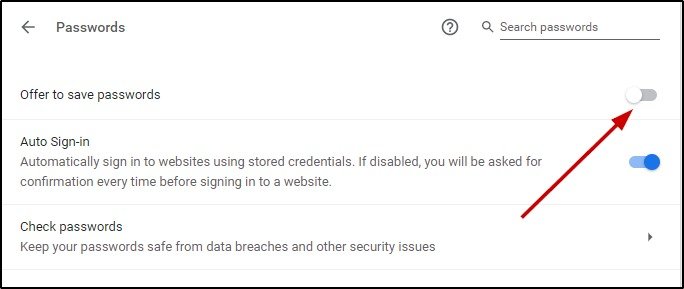
Next time, it will not ask you to remember the password you will enter on the browser.

Having passed the long way from a database analyst and computer technician to an executive in charge of a large enterprise department's technical direction, he now uses his experience and the almighty power of the Internet to teach, inspire and empower young people and mature to extend their technological skills.
- Convert Multiple Images to Text using OCR using Python - November 10, 2023
- How to use WhatsApp on Android Tablet (Simultaneously) - September 1, 2022
- How to Cancel PayPal Subscriptions (recurring payments through PayPal)? - June 28, 2022